

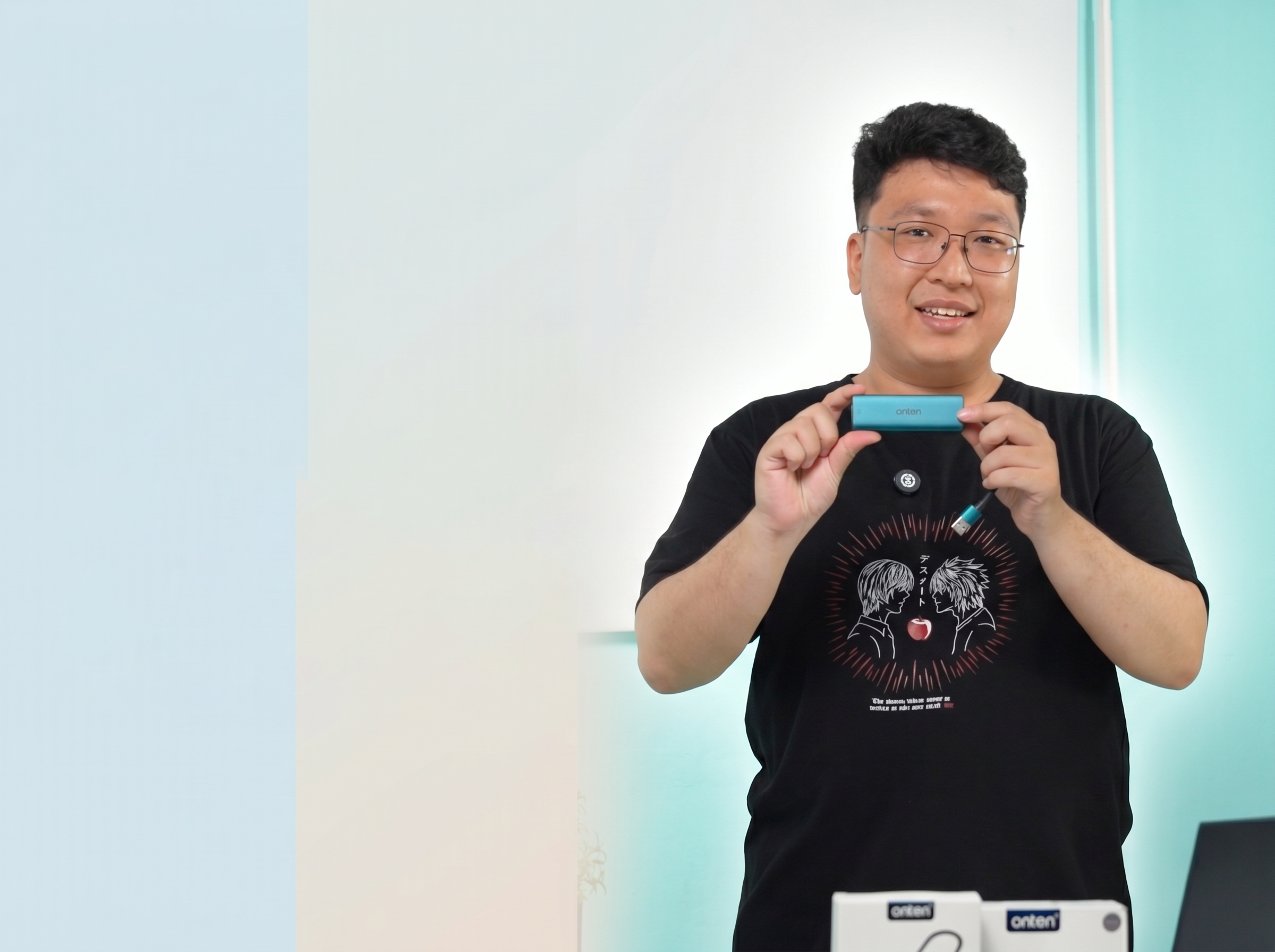
How to Connect MHL on the Onten OTN-US125 USB Hub: Step-by-Step Guide (No MHL Phone Needed!)
Got a phone or laptop without an MHL port but still want to mirror your screen to a TV or monitor via HDMI? The Onten OTN-US125 USB Hub Multi-Function Docking Station makes it possible — no MHL cable required. This guide walks you through exactly how to connect your smartphone or PC to an external display using the OTN-US125, step by step.
What is the Onten OTN-US125?
The OTN-US125 is a 5-in-1 USB hub docking station that combines:
- 1x HDMI output (1080p)
- 2x USB 3.0 / USB 2.0 ports (Type A)
- 1x USB-C port
- 1x USB-C 5V power input
With this single device, you can turn any USB-A or USB-C device — phone, laptop, or tablet — into a display source for an external monitor or TV, even if that device doesn't have MHL or HDMI output.
What You'll Need
- Onten OTN-US125 USB Hub
- An HDMI cable
- An external monitor or TV
- Your smartphone (with USB-C OTG support) or laptop/PC
- The MiraPlug app (for smartphone screen mirroring)
Step 1: Download the MiraPlug App First (For Smartphones)
Before connecting your phone, download the MiraPlug app from the Play Store. This app is required for the OTN-US125 to mirror your phone's screen to an external display — don't skip this step, or the casting prompt won't appear correctly.
Step 2: Connect the OTN-US125 to Your Phone via OTG
Plug the USB-C end of the OTN-US125 directly into your smartphone's USB-C (OTG) port. The hub's compact design lets it connect straight to your device without extra adapters.
Step 3: Connect an HDMI Cable to a Monitor or TV
Plug an HDMI cable into the HDMI port on the OTN-US125, then connect the other end to your monitor or TV. Switch your display's input source to the matching HDMI channel.
Step 4: Allow the Screen Casting Permission
Once connected, your phone will show a "Start recording or casting with MiraPlug?" prompt with an "Entire screen" option. Tap Start to grant permission.
Step 5: Your Phone Will Auto-Connect to the Display
After granting permission, your phone screen will automatically mirror to the external monitor — no extra configuration needed. This is how the OTN-US125 delivers MHL-like screen mirroring without needing a dedicated MHL port.
Step 6: Connecting to a Laptop or PC (Alternative Method)
The OTN-US125 isn't just for phones — it also works as a USB display adapter for laptops and PCs:
- Plug the USB-A (or USB-C) end of the OTN-US125 into your laptop's USB port.
- Connect the HDMI cable from the hub to your external monitor.
- Open File Explorer and go to This PC. You'll see a new drive labeled "CD Drive (D:) USB Display."
- Open it — if you see a popup saying "USB Display is already installed," click OK.
- Your laptop will now extend or mirror its display to the connected monitor automatically.
Step 7: Enjoy Flexible Multi-Device Display
That's it! Whether you're using a smartphone without an MHL port or a laptop without an extra HDMI output, the Onten OTN-US125 gives you a fast, flexible, and plug-and-play way to connect to any external display.
Troubleshooting Tips
- No casting prompt on phone? Make sure the MiraPlug app is installed before connecting the hub.
- "No Signal" on monitor? Check that the HDMI cable is fully plugged into both the hub and the display, and that the display input matches.
- PC not detecting the display driver? Reopen "This PC" in File Explorer and run the USB Display installer from the CD Drive again.
Final Thoughts
The Onten OTN-US125 proves you don't need a built-in MHL port to mirror your screen to a bigger display. With just a USB hub, an HDMI cable, and the MiraPlug app, both smartphone and laptop users can enjoy seamless screen sharing — making it a must-have accessory for presentations, streaming, and productivity.
Onten OTN-9175K USB-C to Dual HDMI Adapter: How a Dual-Monitor Setup Transforms Your Productivity
Onten OTN-DS60 Gimbal Stabilizer: 5 Benefits for Professional and Casual Content Creators