

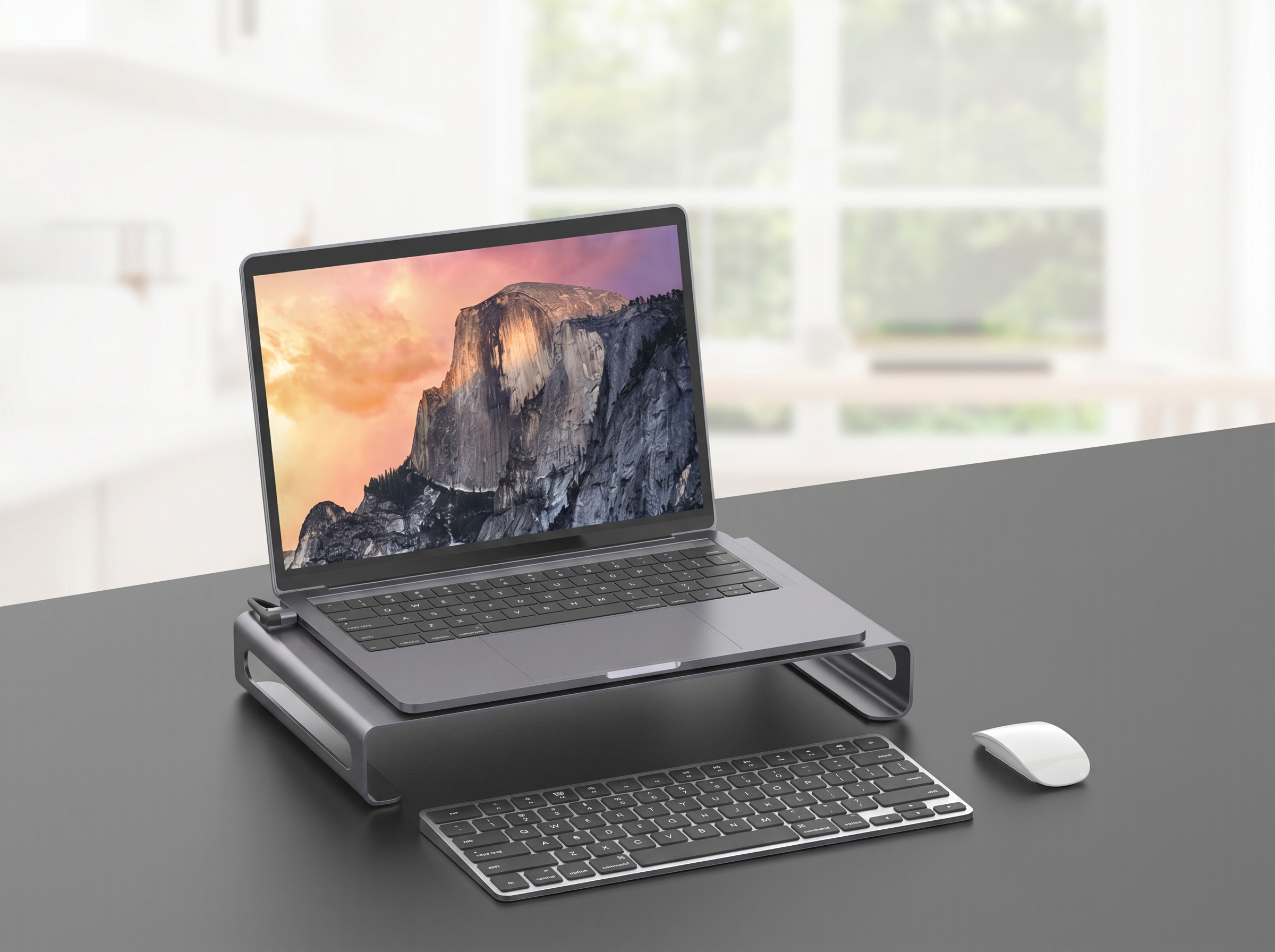
ONTEN OTN-95107 Laptop Stand Docking Station Review: 9-in-1 Dual HDMI Hub Guide
Introduction
If your desk is cluttered with adapters, dongles, and a laptop balanced on a stack of books, the ONTEN OTN-95107 9-in-1 Laptop Stand Docking Station solves two problems at once: it elevates your laptop for better ergonomics and expands a single USB-C port into a full multi-display workstation. With dual HDMI outputs, gigabit LAN, USB 3.0 ports, and PD3.0 charging, this docking stand is built for users who want a serious productivity upgrade.
This step-by-step guide walks through the features, setup process, and troubleshooting tips for the OTN-95107.
What Is the ONTEN OTN-95107?
The ONTEN OTN-95107 is a combination laptop stand and 9-in-1 docking station. Unlike a basic hub, it physically raises your laptop to a more ergonomic viewing height while simultaneously providing video, networking, charging, and data ports — all through a single USB-C connection to your laptop.
Key Specifications at a Glance
| Feature | Detail |
|---|---|
| Input Connector | USB Type-C |
| HDMI Output 1 | 4K @ 60Hz |
| HDMI Output 2 | 1080p @ 60Hz |
| USB 3.0 Type-A Ports | 2x |
| USB 3.0 Type-C Port | 1x |
| Charging | PD3.0 Type-C Charging |
| Network Port | LAN, up to 1000Mbps (Gigabit) |
| Required Standard | DP Alt Mode or MHL |
| Color | Silver |
| Form Factor | Laptop stand + docking hub combo |
Step 1: Understand the 9 Functions
The OTN-95107 packs nine functions into one device:
- HDMI Output 1 — 4K 60Hz, ideal for your primary external monitor.
- HDMI Output 2 — 1080p 60Hz, perfect for a secondary display or extended desktop.
- USB 3.0 Type-A (Port 1) — High-speed data for external drives or peripherals.
- USB 3.0 Type-A (Port 2) — A second high-speed USB-A connection.
- USB 3.0 Type-C — Additional high-speed data port using a Type-C connector.
- PD3.0 Charging — Pass-through charging to power your laptop while docked.
- Gigabit LAN Port — Wired networking up to 1000Mbps for stable, fast internet.
- Laptop Stand — Raises and angles your laptop for better posture and airflow.
- Type-C Host Connection — The single cable that ties everything together.
Step 2: Check Device Compatibility
Before setup, confirm the following:
- Your laptop's USB-C port supports DP Alt Mode or MHL. This is required for both HDMI outputs to work, since video is transmitted over USB-C.
- Your laptop supports dual external displays via one USB-C port. Not all laptops can drive two independent external monitors simultaneously — check your device specifications.
- Your charger supports PD3.0 if you plan to charge your laptop through the dock.
- Your monitors have HDMI inputs matching the resolutions you want (4K 60Hz for the primary, 1080p 60Hz for the secondary).
Step 3: Set Up the Laptop Stand
- Unfold or position the stand on a flat surface.
- Place your laptop on the stand at your preferred angle and height.
- Ensure proper ventilation underneath your laptop, as one benefit of the stand is improved airflow.
Step 4: Connect the Dock
- Plug the USB-C end into your laptop.
- Connect your primary monitor via HDMI Output 1 for 4K 60Hz.
- Connect a secondary monitor via HDMI Output 2 for 1080p 60Hz, if desired.
- Plug an Ethernet cable into the LAN port for wired networking.
- Connect any USB peripherals (mouse, keyboard, external drive) to the USB 3.0 Type-A or Type-C ports.
- Plug your PD3.0 charger into the charging port to power your laptop while docked.
Step 5: Configure Your Multi-Display Setup
- Once connected, your operating system should detect both external monitors.
- On Windows: Go to Settings > System > Display, click "Detect," then arrange your displays and set each monitor's resolution (4K for HDMI 1, 1080p for HDMI 2).
- On macOS: Go to System Settings > Displays to arrange and configure each screen.
- Choose "Extend" if you want separate desktop space on each monitor, or "Duplicate" if you want both screens mirrored.
Step 6: Troubleshooting Common Issues
| Problem | Likely Cause | Solution |
|---|---|---|
| Only one HDMI output works | Laptop doesn't support dual external displays | Check your laptop's GPU/display specs |
| 4K resolution not available | Monitor or cable limitation | Confirm monitor supports 4K 60Hz; check HDMI cable |
| Laptop not charging while docked | Non-PD3.0 charger | Use a compatible PD3.0 power adapter |
| LAN port not detected | Driver issue | Update network drivers or restart device |
| USB devices not recognized | Loose connection | Reconnect device or try a different USB port on the dock |
Why Choose the ONTEN OTN-95107?
- Dual monitor support — Run a 4K primary display and a 1080p secondary display simultaneously.
- Ergonomic design — Doubles as a laptop stand, improving posture and laptop cooling.
- Fast, reliable networking — Gigabit LAN ensures stable wired internet for video calls and large transfers.
- Comprehensive connectivity — Combines video, data, networking, and charging in one docking solution.
- Simultaneous charging — PD3.0 input means your laptop charges while fully docked and in use.
Who Is This Docking Stand Best For?
- Professionals who need a true multi-monitor desktop setup from a single laptop
- Remote workers who want a stable wired internet connection and full charging while working
- Anyone seeking an ergonomic laptop stand that doubles as a productivity hub
- Users replacing multiple separate adapters, stands, and chargers with one unified solution
Final Thoughts
The ONTEN OTN-95107 9-in-1 Laptop Stand Docking Station is designed for users who want more than a basic hub — it's a complete workstation upgrade. With dual HDMI outputs (4K 60Hz and 1080p 60Hz), Gigabit LAN, multiple USB 3.0 ports, and PD3.0 charging, it covers nearly every connectivity need while also improving your laptop's ergonomics on the desk.
Before buying, confirm your laptop supports DP Alt Mode (or MHL) and dual external display output, and pair the dock with a PD3.0 charger to unlock its full charging capability. With the right setup, the OTN-95107 can transform a single laptop into a fully equipped multi-monitor workstation.
What Is a Gold-Plated Connector? Why It Matters for Your Cables
ONTEN OTN-332 HDMI Video Audio Pro Capture Card: Why It's Built for Serious Content Creators