

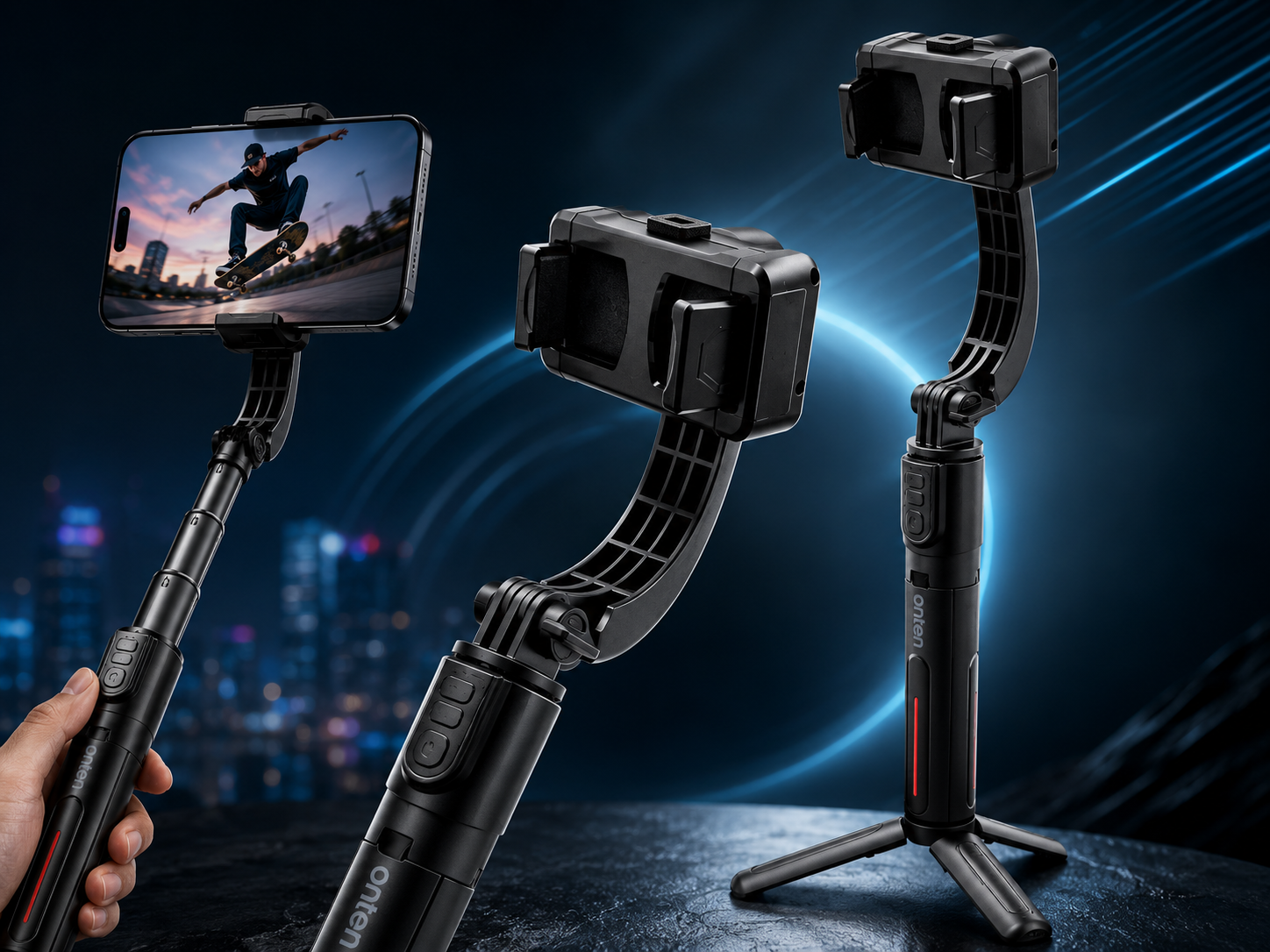
ONTEN OTN-DS60 1-Axis Gimbal Bluetooth Tripod Stabilizer Review: Step-by-Step Guide
Introduction
Smooth, professional-looking video doesn't always require expensive camera gear. The ONTEN OTN-DS60 1-Axis Gimbal Bluetooth Tripod Stabilizer combines a selfie stick, tripod, and gimbal stabilizer into one compact device — giving content creators, vloggers, and everyday smartphone users an easy way to capture steadier shots and better angles.
This step-by-step guide covers how the OTN-DS60 works, how to set it up, and how to get the most out of its 2-in-1 tripod and gimbal functionality.
What Is the ONTEN OTN-DS60?
The ONTEN OTN-DS60 is a 2-in-1 tripod and gimbal stabilizer built around a 1-axis stabilization system with full 360-degree rotation. It includes a Bluetooth remote for hands-free shutter control, a 70cm extendable selfie stick, and USB-C charging, making it a versatile, all-in-one accessory for smartphone photography and video.
Key Specifications at a Glance
| Feature | Detail |
|---|---|
| Stabilization | 1-Axis Gimbal, 360° rotation |
| Remote Control | Bluetooth remote included |
| Charging | USB-C |
| Stick Length | 70cm extendable selfie stick |
| Modes | 2-in-1: Tripod & Gimbal |
| Rotation | Full 360° |
| Color | Black |
Step 1: Understand the 2-in-1 Modes
The OTN-DS60 is designed to function in two distinct ways:
- Tripod Mode — Unfold the tripod legs to set the device down on a flat surface for stable, hands-free shots, ideal for group photos, vlogging setups, or live streaming.
- Gimbal Mode — Hold the device by the selfie stick and use the 1-axis stabilizer to smooth out handheld movement, reducing shake while walking, panning, or following a subject.
Knowing when to switch between these two modes will help you get the most stable and creative shots for different situations.
Step 2: Charge the Device
- Locate the USB-C charging port on the gimbal's handle or base.
- Connect a USB-C cable and charge fully before first use.
- Check the device's indicator light (if equipped) to confirm charging status and full charge completion.
Step 3: Attach Your Smartphone
- Open the phone clamp/holder on the gimbal head.
- Insert your smartphone securely, making sure it's centered and balanced for smooth stabilization.
- Adjust the clamp tension if needed to ensure your phone doesn't shift during use.
Step 4: Pair the Bluetooth Remote
- Power on the gimbal and the Bluetooth remote.
- Go to your smartphone's Bluetooth settings and search for available devices.
- Select the OTN-DS60 remote from the list to pair.
- Once paired, test the remote's shutter button to confirm it's correctly triggering your camera app.
Step 5: Use Tripod Mode
- Unfold the tripod legs at the base of the device.
- Place it on a flat, stable surface.
- Adjust the angle of the phone holder to frame your shot.
- Use the Bluetooth remote to start recording or take photos without touching your phone.
Step 6: Use Gimbal Mode
- Fold the tripod legs back in and hold the device by the extendable stick.
- Power on the 1-axis stabilizer function.
- Allow the gimbal a moment to balance and stabilize once switched on.
- Move, walk, or pan smoothly — the 1-axis stabilization will help reduce shake along that axis.
- Use the 360° rotation feature to quickly adjust your shooting angle without repositioning your whole body.
Step 7: Extend the Selfie Stick
- Twist or slide the extension mechanism to lengthen the stick up to 70cm.
- Use the extended length for wider group shots, higher angles, or extra distance from the camera.
- Retract the stick when not needed for more compact, controlled handheld shots.
Step 8: Troubleshooting Common Issues
| Problem | Likely Cause | Solution |
|---|---|---|
| Bluetooth remote not pairing | Remote not in pairing mode | Restart the remote and re-enter Bluetooth settings |
| Gimbal not stabilizing | Stabilizer not powered on or phone unbalanced | Check power switch; recenter and rebalance phone in clamp |
| Phone wobbling during gimbal use | Clamp not tightened properly | Adjust clamp grip to firmly secure the phone |
| Device not charging | Faulty cable or port connection | Try a different USB-C cable or check the charging port |
| Selfie stick won't extend/retract | Mechanism stuck | Check for obstructions and gently twist or slide again |
Why Choose the ONTEN OTN-DS60?
- True 2-in-1 functionality — Switch between tripod and gimbal modes depending on your shooting needs.
- Smooth 1-axis stabilization — Reduces shake for more professional-looking handheld video.
- Full 360° rotation — Quickly change angles without repositioning.
- Convenient Bluetooth remote — Capture photos and videos hands-free.
- Extendable reach — The 70cm selfie stick adds flexibility for group shots and unique angles.
- Modern USB-C charging — Convenient and widely compatible charging standard.
Who Is This Stabilizer Best For?
- Content creators and vloggers wanting smoother handheld video
- Social media users who frequently take group photos or selfies
- Live streamers needing a stable, hands-free phone setup
- Anyone looking for an affordable, all-in-one alternative to separate tripods and gimbals
Final Thoughts
The ONTEN OTN-DS60 1-Axis Gimbal Bluetooth Tripod Stabilizer is a practical, multi-purpose tool for smartphone photographers and video creators. By combining a tripod, gimbal stabilizer, selfie stick, and Bluetooth remote into one device, it simplifies your gear setup while still delivering smoother shots and more creative flexibility.
Whether you're filming a vlog on the move, setting up a stable shot for a livestream, or capturing a group photo with friends, the OTN-DS60's 2-in-1 design and 360° rotation make it a versatile addition to any content creator's toolkit.
ONTEN OTN-UHD6 HDD/SSD Docking & Cloning Station Review: Step-by-Step Setup Guide
ONTEN OTN-9701D Type-C to 4-Port USB 2.0 Hub Review: Why It's the Perfect Portable Expansion Solution