

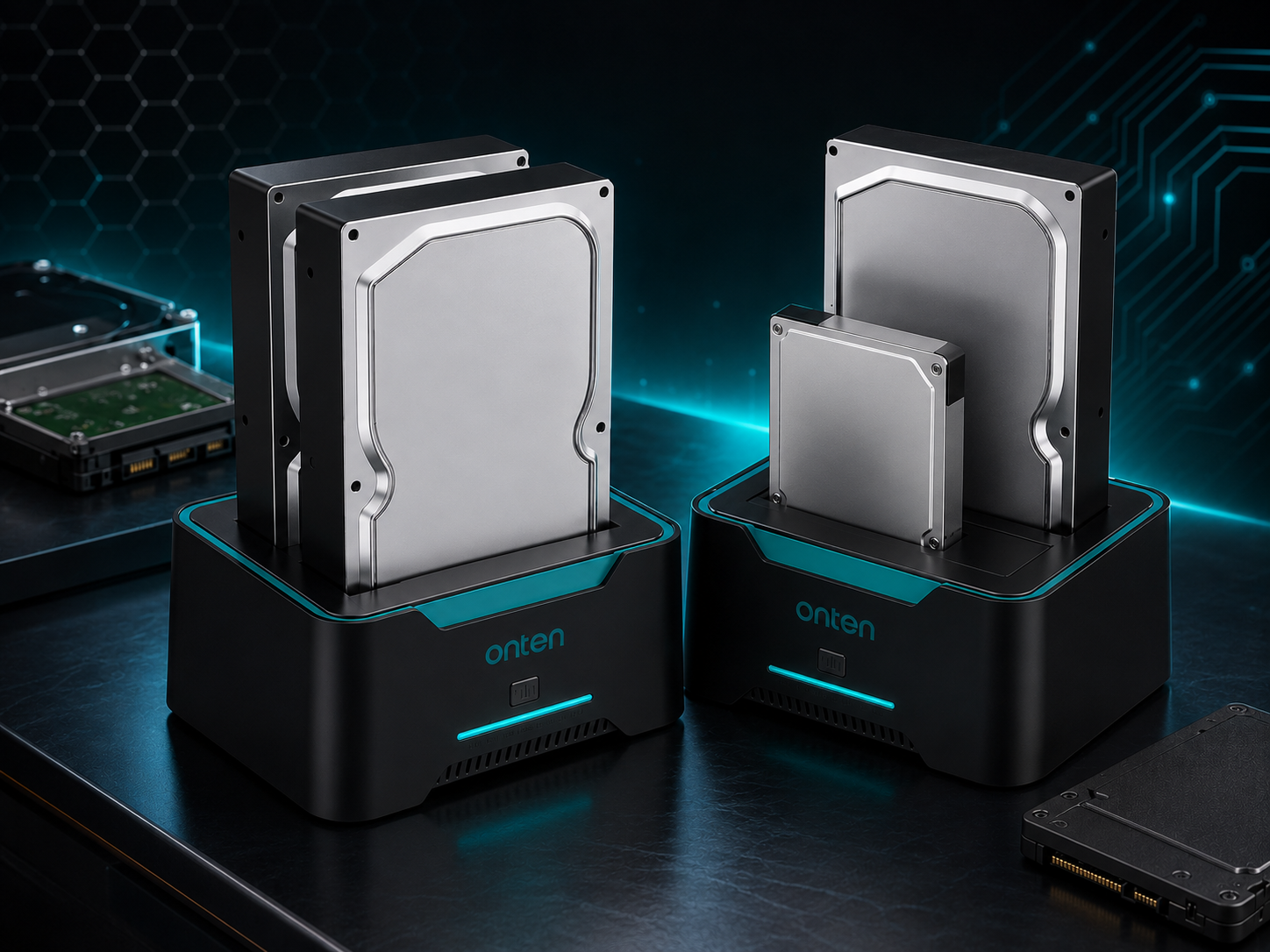
ONTEN OTN-UHD6 HDD/SSD Docking & Cloning Station Review: Step-by-Step Setup Guide
Introduction
Backing up, upgrading, or transferring data between hard drives doesn't have to mean opening up your computer or buying a new enclosure for every drive. The ONTEN OTN-UHD6 SATA Docking & Cloning Station lets you plug in 2.5" or 3.5" HDDs and SSDs directly, offering both fast USB 3.0 data transfer and a standalone offline cloning feature — no computer required.
This step-by-step guide explains how the OTN-UHD6 works, how to set it up, and how to use its cloning function to duplicate drives quickly and safely.
What Is the ONTEN OTN-UHD6?
The ONTEN OTN-UHD6 is a dual-bay SATA docking station designed for both 2.5-inch and 3.5-inch hard drives and SSDs. It connects to a computer via USB 3.0 for high-speed file access, but its standout feature is offline drive cloning — the ability to copy one entire drive to another without needing a PC at all.
Key Specifications at a Glance
| Feature | Detail |
|---|---|
| Connection Type | USB 3.0 Type-B to Type-A |
| Supported Drive Sizes | 3.5" and 2.5" SATA HDD/SSD |
| Transfer Speed | Up to 5Gbps |
| Power Source | 12VDC power adapter |
| Driver Requirement | Plug & Play, no driver needed |
| Maximum Storage Support | Up to 10TB per drive |
| Special Feature | Offline storage cloning |
| Color | Black |
Step 1: Understand the Two Main Functions
The OTN-UHD6 serves two primary purposes:
- USB Docking Mode — Connects a SATA hard drive or SSD to your computer via USB 3.0, letting you read, write, and transfer files just like a regular external drive.
- Offline Cloning Mode — Duplicates the entire contents of one drive directly onto another, without needing a computer connected at all. This is especially useful for upgrading to a larger drive or creating a full backup copy.
Step 2: Check Drive Compatibility
Before using the dock, confirm the following:
- Your drive uses a SATA interface (not IDE or NVMe). The OTN-UHD6 is built specifically for SATA HDDs and SSDs.
- Your drive is 2.5" or 3.5" in size. Both form factors are supported in the same dock.
- Your drive capacity is 10TB or less, as this is the maximum supported size.
- For cloning, your destination drive should be equal to or larger than the source drive to ensure all data fits.
Step 3: Connect for USB Docking Use
- Insert your SATA HDD or SSD into one of the dock's bays, aligning the connector properly.
- Connect the USB 3.0 Type-B end to the dock and the Type-A end to your computer.
- Plug in the 12VDC power adapter and power on the dock.
- Your computer should automatically detect the drive — no driver installation needed, since the device is plug & play.
- Access the drive through "This PC" (Windows) or "Finder" (macOS) just like any external drive.
Step 4: Use the Offline Cloning Feature
One of the most useful aspects of the OTN-UHD6 is cloning a drive without a computer:
- Insert your source drive (the drive with existing data) into Bay 1.
- Insert your destination drive (the blank or to-be-overwritten drive) into Bay 2.
- Power on the dock using the 12VDC adapter.
- Press the dedicated clone button (refer to your unit's button layout, typically marked "Clone" or with a copy icon).
- Wait for the cloning process to complete. An LED indicator typically shows progress and completion status.
- Once finished, safely remove both drives.
Important: Cloning will overwrite all existing data on the destination drive. Double-check you've inserted drives in the correct bays before starting the process.
Step 5: Troubleshooting Common Issues
| Problem | Likely Cause | Solution |
|---|---|---|
| Drive not detected by computer | Loose connection or drive seating | Reinsert drive firmly into the bay |
| Slow transfer speeds | USB port limitation | Use a USB 3.0 port, not USB 2.0 |
| Cloning doesn't start | Source/destination drives swapped | Verify which bay holds the source vs. destination drive |
| Drive not recognized at all | Drive size exceeds 10TB or unsupported format | Check drive specifications and file system compatibility |
| Dock not powering on | Power adapter issue | Confirm the 12VDC adapter is properly connected and functioning |
Why Choose the ONTEN OTN-UHD6?
- Dual drive size support — Works with both 2.5" and 3.5" SATA drives in one device.
- No software required for cloning — The offline cloning feature works independently of any computer or operating system.
- Plug & play simplicity — No drivers to install, making it accessible for non-technical users.
- Fast data transfer — Up to 5Gbps via USB 3.0 for quick file access and backups.
- High capacity support — Handles drives up to 10TB, covering most consumer and prosumer storage needs.
Who Is This Docking Station Best For?
- Users upgrading to a larger hard drive who want a simple way to clone their old drive
- IT technicians and repair shops needing a quick tool for drive duplication
- Anyone with multiple old hard drives who wants an easy way to access or back up data
- Users who prefer a no-software, plug & play approach to external storage management
Final Thoughts
The ONTEN OTN-UHD6 SATA Docking & Cloning Station is a versatile tool for anyone working with multiple hard drives or SSDs. Whether you need fast USB 3.0 access to a drive's files or want to clone an entire drive without a computer, this dock handles both tasks reliably. With support for drives up to 10TB and a true plug & play design, it's a practical addition to any home office, repair shop, or IT toolkit.
Before using the cloning feature, always confirm which bay holds your source drive and which holds your destination drive, since the process will overwrite existing data on the destination. With the right setup, the OTN-UHD6 makes drive backups, upgrades, and transfers fast and hassle-free.
Why Choose the ONTEN OTN-5130B Mini DisplayPort to HDMI 4K 60Hz Cable?
ONTEN OTN-DS60 1-Axis Gimbal Bluetooth Tripod Stabilizer Review: Step-by-Step Guide