

ONTEN OTN-UC125 5-in-1 USB-C Hub Review: HDMI, LAN & PD3.0 Charging Guide

Introduction
For anyone juggling multiple cables just to connect a monitor, network, and charger to a laptop, the ONTEN OTN-UC125 5-in-1 USB-C Hub offers a clean, all-in-one solution. With HDMI output, LAN connectivity, dual USB ports, and PD3.0 fast charging, this compact hub turns a single USB-C port into a full workstation connection point.
This step-by-step guide covers everything you need to know about the OTN-UC125 — from setup to troubleshooting — so you can get the most out of this multi-port hub.
What Is the ONTEN OTN-UC125?
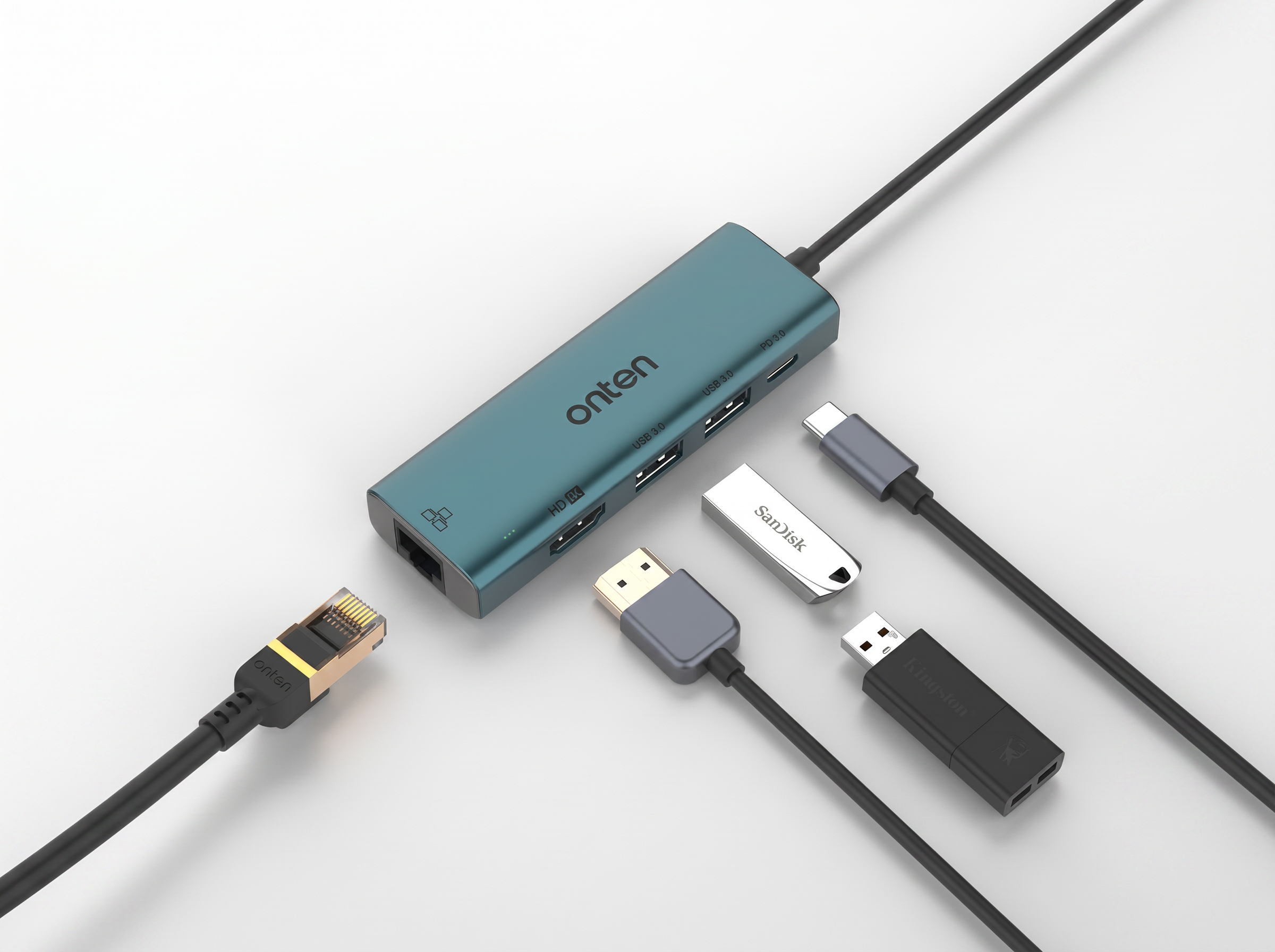
The ONTEN OTN-UC125 is a 5-in-1 Type-C hub that expands a single USB-C port into multiple essential connections: HDMI video output, a wired LAN (Ethernet) port, two USB data ports, and a Power Delivery (PD) charging input. It's designed for users who want to turn a laptop or tablet into a more capable desktop-like setup without carrying multiple separate adapters.
Key Specifications at a Glance
| Feature | Detail |
|---|---|
| Input Connector | USB Type-C |
| Video Output | HDMI, up to 4K @ 30Hz |
| Network Port | LAN (Ethernet) |
| USB Ports | 1x USB 2.0 Type-A, 1x USB 3.0 Type-A |
| Charging | PD3.0 Input Charging |
| Required Standard | DP Alt Mode or MHL |
| Color | Green |
| Ports Total | 5-in-1 |
Step 1: Understand the 5 Functions of the Hub
Before setup, it helps to know exactly what each port does:
- HDMI Output — Connects to a monitor, TV, or projector for video at up to 4K 30Hz.
- LAN Port — Provides a stable wired internet connection, useful when Wi-Fi isn't reliable.
- USB 3.0 Type-A — High-speed data transfer for external drives, flash drives, or peripherals.
- USB 2.0 Type-A — Additional USB port for keyboards, mice, or lower-speed accessories.
- PD3.0 Charging Input — Lets you charge your laptop through the hub while using the other ports simultaneously.
Step 2: Check Device Compatibility
Before relying on this hub daily, confirm the following:
- Your laptop or tablet's USB-C port supports DP Alt Mode or MHL. This is required for the HDMI output to function, since video is carried over the same USB-C connection.
- Your charger supports PD3.0 if you want to use the pass-through charging feature. Using a non-PD charger may result in slower or no charging.
- Your monitor or TV has an HDMI input to match the hub's output.
Step 3: Connect the Hub
Follow these steps for a smooth setup:
- Plug the USB-C end of the hub into your laptop or tablet.
- Connect an HDMI cable from the hub to your monitor or TV.
- Plug an Ethernet cable into the LAN port if you need a wired internet connection.
- Connect any USB devices (mouse, keyboard, external drive) to the USB 2.0 or 3.0 ports.
- Plug your PD3.0 charger into the charging input to power your laptop while using the hub.
Step 4: Configure Display and Network Settings
Once everything is connected:
- Display: Your laptop should automatically detect the external monitor via HDMI. If not, go to your display settings (Windows: Settings > System > Display; macOS: System Settings > Displays) and select "Detect Displays."
- Network: Most operating systems automatically switch to the wired LAN connection once detected. You can confirm this in your network settings panel.
- Charging: Check your laptop's battery icon or charging indicator to confirm power is flowing through the PD3.0 input.
Step 5: Troubleshooting Common Issues
| Problem | Likely Cause | Solution |
|---|---|---|
| No video on monitor | Device doesn't support DP Alt Mode | Verify your laptop's USB-C video output capability |
| Resolution capped below 4K | Cable, monitor, or device limitation | Confirm monitor supports 4K 30Hz and check HDMI cable quality |
| Laptop not charging | Non-PD charger used | Use a PD3.0-compatible power adapter |
| LAN not connecting | Driver or OS detection issue | Restart device or check network adapter settings |
| USB devices not recognized | Loose connection or port issue | Reconnect device or try the other USB port |
Why Choose the ONTEN OTN-UC125?
- All-in-one convenience — Five functions in a single compact hub eliminate cable clutter.
- Simultaneous charging and use — PD3.0 input means you don't have to choose between charging and using your other ports.
- Reliable wired networking — The built-in LAN port is ideal for video calls, large file transfers, or unstable Wi-Fi environments.
- Flexible peripheral support — Dual USB ports (2.0 and 3.0) accommodate a range of accessories.
Who Is This Hub Best For?
- Remote workers needing a stable wired internet connection alongside video output
- Laptop users who want to charge and connect peripherals through one port
- Anyone using a USB-C-only laptop who needs traditional HDMI, USB-A, and Ethernet connectivity
- Students or professionals setting up a temporary desk station while traveling
Final Thoughts
The ONTEN OTN-UC125 5-in-1 USB-C Hub is a practical, space-saving accessory for anyone who needs more than just video output from their USB-C laptop or tablet. With HDMI at up to 4K 30Hz, wired LAN, dual USB ports, and PD3.0 charging, it covers the most common connectivity needs in a single, portable device.
Before purchasing, make sure your device supports DP Alt Mode or MHL for video output, and pair it with a PD3.0 charger to take full advantage of pass-through charging. With the right setup, this hub can effectively replace several separate adapters and cables on your desk.
ONTEN OTN-UC938 Type-C to DisplayPort Converter Review: 8K 60Hz Cable Guide
What Is a Gold-Plated Connector? Why It Matters for Your Cables